

1
Verify a domain with Inbound
Verify a domain and enable receiving emails for that domain. We strongly recommend verifying a subdomain (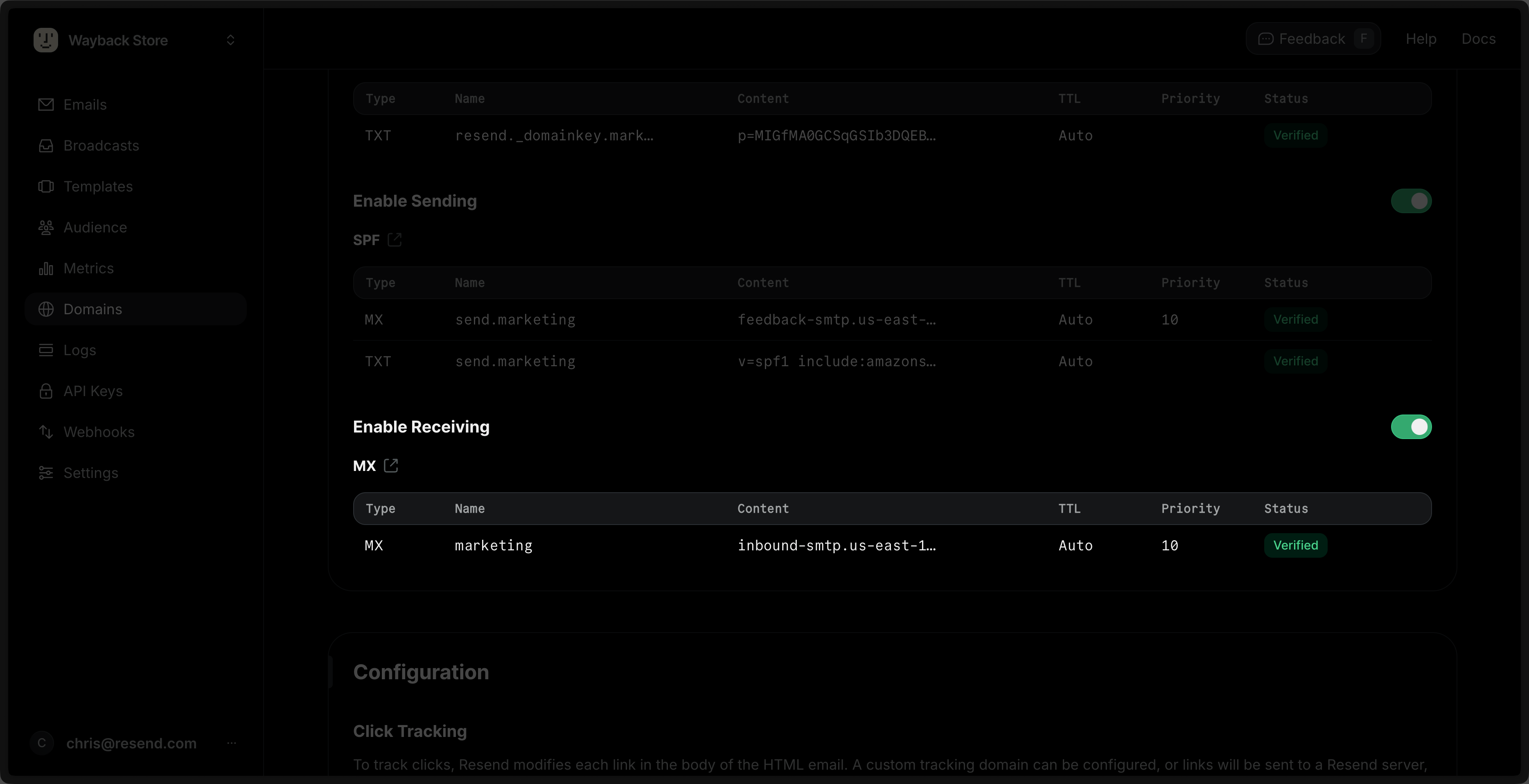
subdomain.example.com) instead of the root domain (example.com).2
Create a POST route
Resend can send a webhook to your application’s endpoint every time you receive an email.Add a new POST route to your application’s endpoint.
app/api/inbound-webhook/route.ts
3
Create a webhook in Resend
Go to the Webhooks page and click Add Webhook.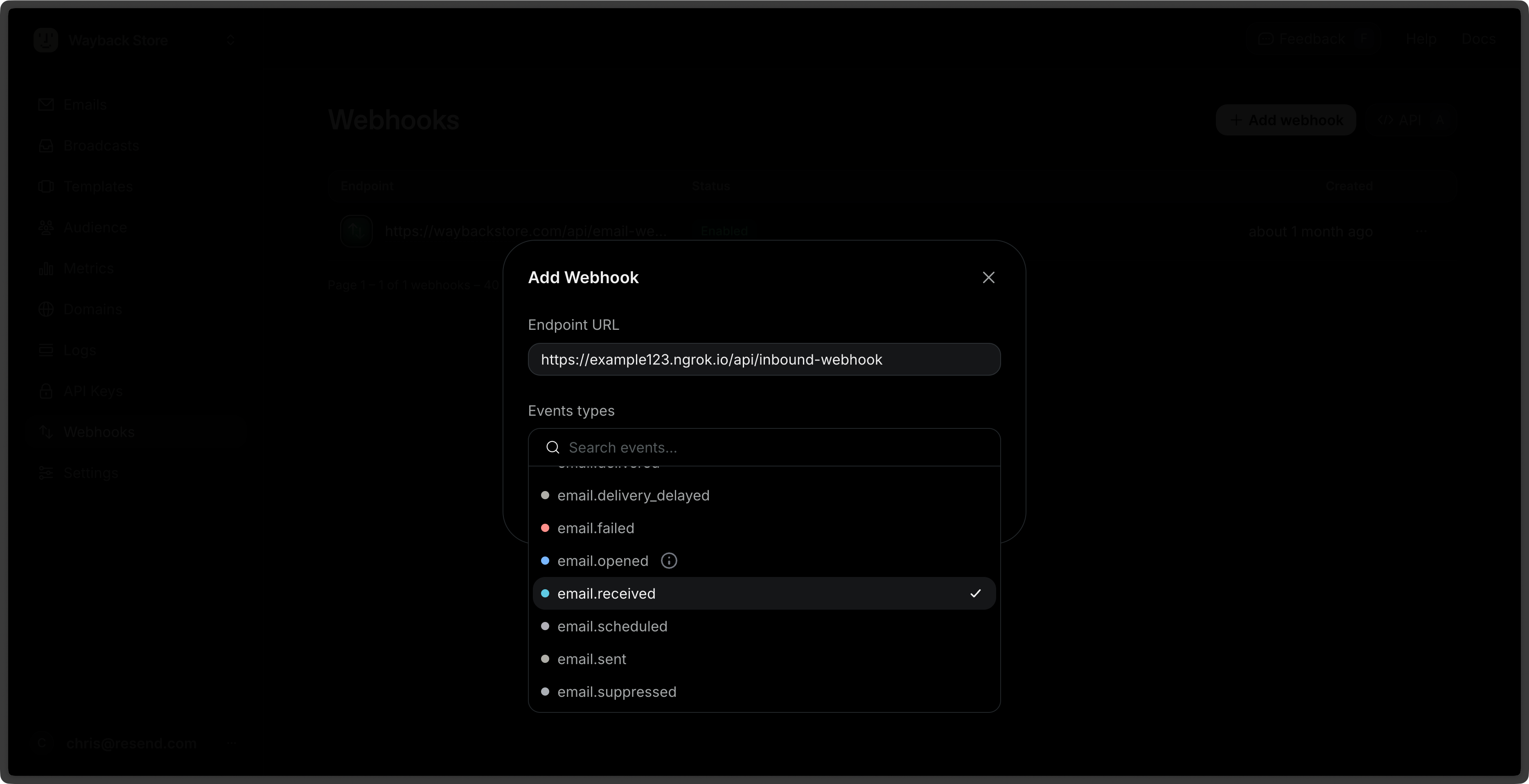
- Add your publicly accessible HTTPS URL.
- Select all events you want to observe (e.g.,
email.received). - Click Add.
4
Add Resend to your project
Add the Resend Node.js SDK to your project using your preferred package manager.Create an API key with “Full access” permission in Resend and add it to your project’s .env file.
.env
5
Verify the webhook request
Webhook signing secrets are used to validate the payload data sent to your application from Resend.Update your POST route to verify the webhook request using the webhook secret. First, copy the webhook secret from the webhook details page.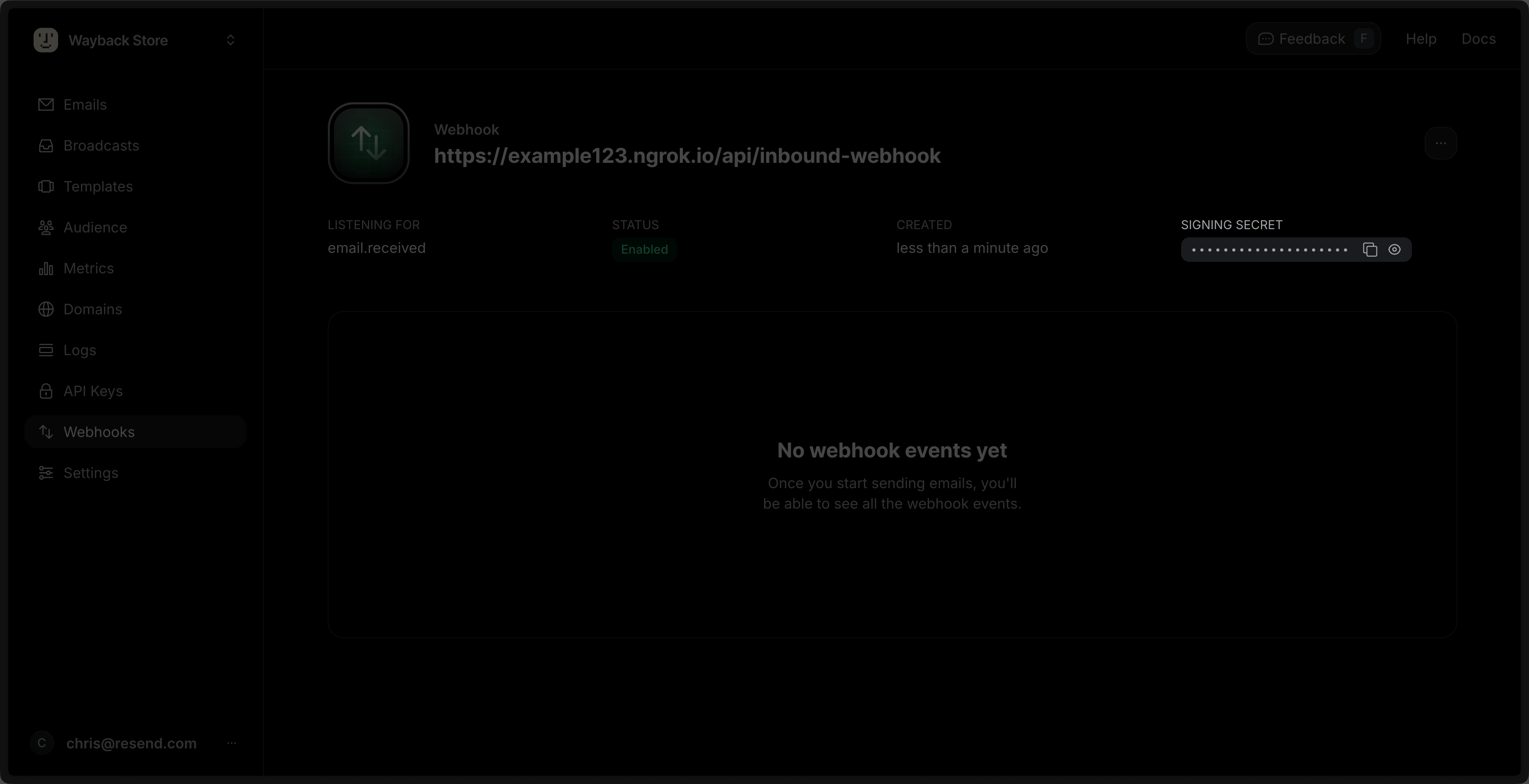
.env
app/api/inbound-webhook/route.ts
6
Process incoming emails
Once you verify the webhook, it returns the webhook payload as a JSON object. You can use this payload to forward the email to another email address. Note the following steps:
- Add a guard clause to ensure the event type is
email.received. - Get the incoming email’s content
- Download and encode any attachments
- Forward the email (remember to update the
fromandtoaddresses below)
You must call the received emails
API to retrieve the email
content and the attachments
API to retrieve the
attachments. This design choice supports large payloads in serverless
environments that have limited request body sizes.
app/api/inbound-webhook/route.ts
7
Test the endpoint
You can test the endpoint by sending an email to the domain you verified.For example, if you verified
marketing.example.com, send an email to [email protected].- Try a simple HTML email with a subject and a body.
- Try an email with an attachment or multiple attachments.
8
Go to Production
Once you’ve tested the endpoint:
- Publish your application to your production environment.
- Add your production POST endpoint as a new webhook in Resend.